
I recently discovered one of my favorite smart home automations when I had my hands slathered in bread dough and my Ring doorbell chimed.
Luckily, I had an Echo Show within earshot and had connected my Ring doorbell to it after setting it up.
Alexa showed me the front door and I saw someone standing on my porch who looked like a salesperson, so I didn’t have to leave my “kneady” dough and answer. I asked Alexa to talk to the front door, and I said I wasn’t interested. Then I quickly turned off my doorbell mic and went back to business.
FYI: If I’m being honest, my motivation for answering unexpected visitors at the door is up there with scheduling painful dental work. Actually, I may go with the dental work first because my dentist has a great sense of humor.
If you’re curious about connecting your Ring camera to your Echo Show, let’s take a look at how simple it is to pair the two. If you haven’t done so yet, you can install your Ring Video Doorbell in six easy steps by following our guide.
Getting Started
First, make sure your Ring camera and Echo Show use the same network.
Most people only use one Wi-Fi network at home, but if you’re running multiple networks, you’ll need both devices connected to the same one. This is crucial for the devices to communicate properly.
FYI: If you’re running into issues with your Ring doorbell camera, you’re not alone. But thankfully, we can help you troubleshoot Ring issues and get you going again.
Step 1: Link Your Accounts
Open the Ring app on your phone or tablet and press the three-lined icon (or hamburger menu, as lots of people call it) in the top left of the screen. You’ll see the main menu. Look for “Accounts” about halfway down, and press it.
On your Account Settings page, press “Link Your Amazon Account” about halfway down. It will ask you to verify your Ring password and then sign in to your Amazon account. Be sure to use the Amazon username and password associated with your Alexa and Echo Show.
Before you press “Link Accounts,” be sure “Enable Ring Alexa Skill” is checked.
Step 2: Find Your Device on Echo
After linking your Ring and Amazon accounts, it should automatically connect any Ring devices you’ve set up to your Alexa through the Ring skill. That’s why it’s important to make sure the “Enable Ring Alexa Skill” option is checked.
Alexa Skills add new functionality to Alexa’s offerings, extending what your device can do beyond its built-in features. These skills come in various categories, including:
- Education and reference
- Productivity
- Smart home
- Games and trivia
- Health and fitness
FYI: Think of Alexa Skills as similar to apps on mobile devices. They let you connect to other services — such as Ring, Hulu, or YouTube — and help you do things easier. One of my all-time favorite skills is a word game called Puzzle of the Day, where Alexa gives you a five-word daily puzzle to solve. It doesn’t save me time, but it sure is fun.
You can swipe down on your Echo touch screen and press “Smart Home” to see all your smart devices and groups. Scroll through the options and press “Cameras,” or swipe through the index cards and search for the name of your camera.
If you don’t see your Ring camera listed, I found that it’s easier to use the Alexa app to add a device.
To add a device through the Alexa app, open it on your phone or tablet, tap “Devices” at the bottom, press the “+” icon in the top right corner, and select “Add Device.” Search for Ring or press “Discover Devices.” Then, Alexa automatically scans your network for compatible Ring devices.
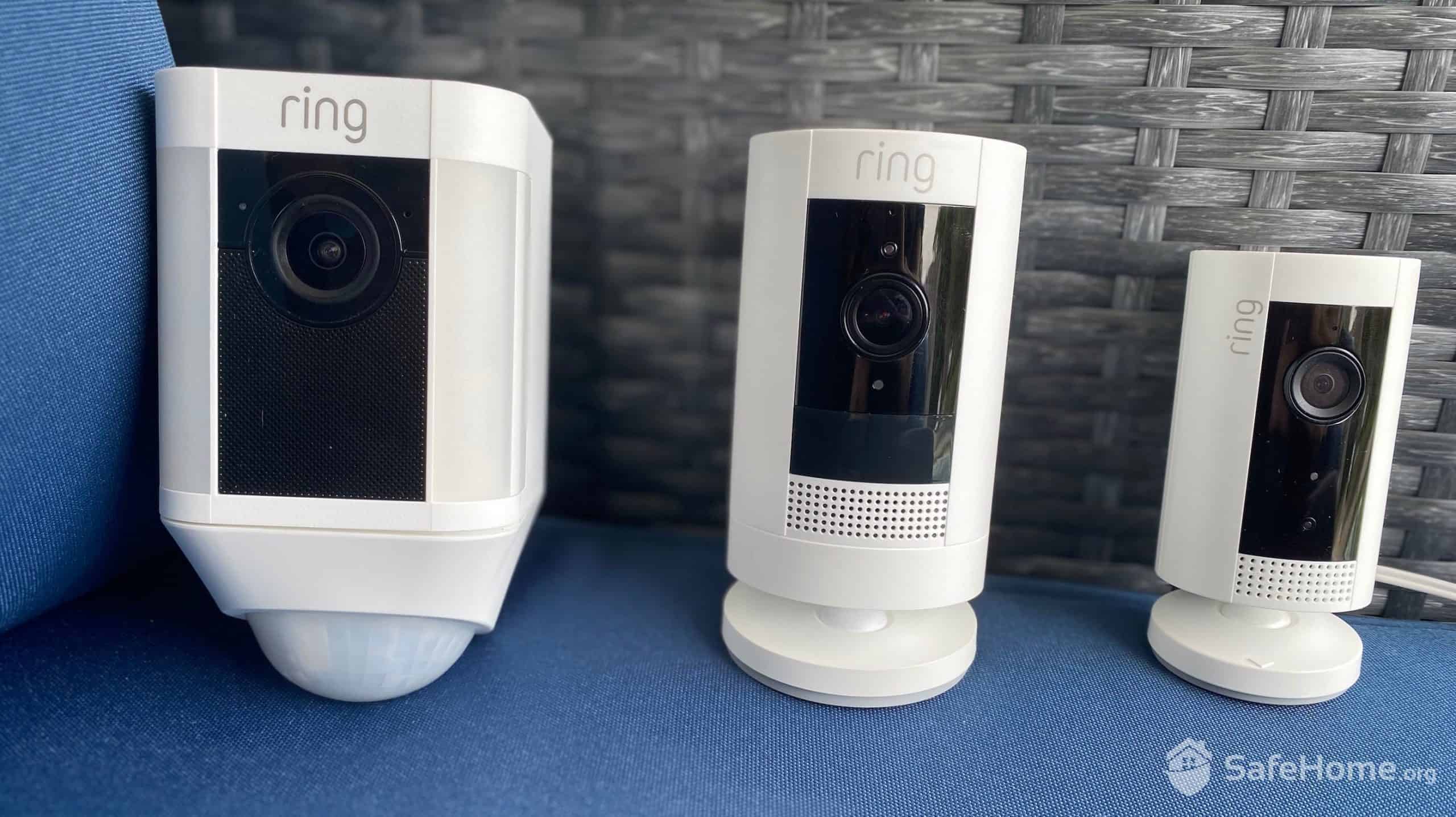
Ring Cameras
>> Check Out: Best Home Security Systems That Work With Alexa
Once Alexa adds your camera, press “Setup Device” and follow the prompts. It should ask a few questions, such as if you’d like to add the camera to a group.
Did You Know? Smart home groups allow Alexa to control multiple devices at once. You could, for example, add smart lights and speakers to a group in your living room to help create the perfect party ambience.
Step 3: Camera Setup Options
To view your camera on Echo Show, you’ll just need to say, “Alexa, show me the front door” (or whatever your camera’s name is) and Echo will display the camera’s live view.
For Ring Doorbell Cameras
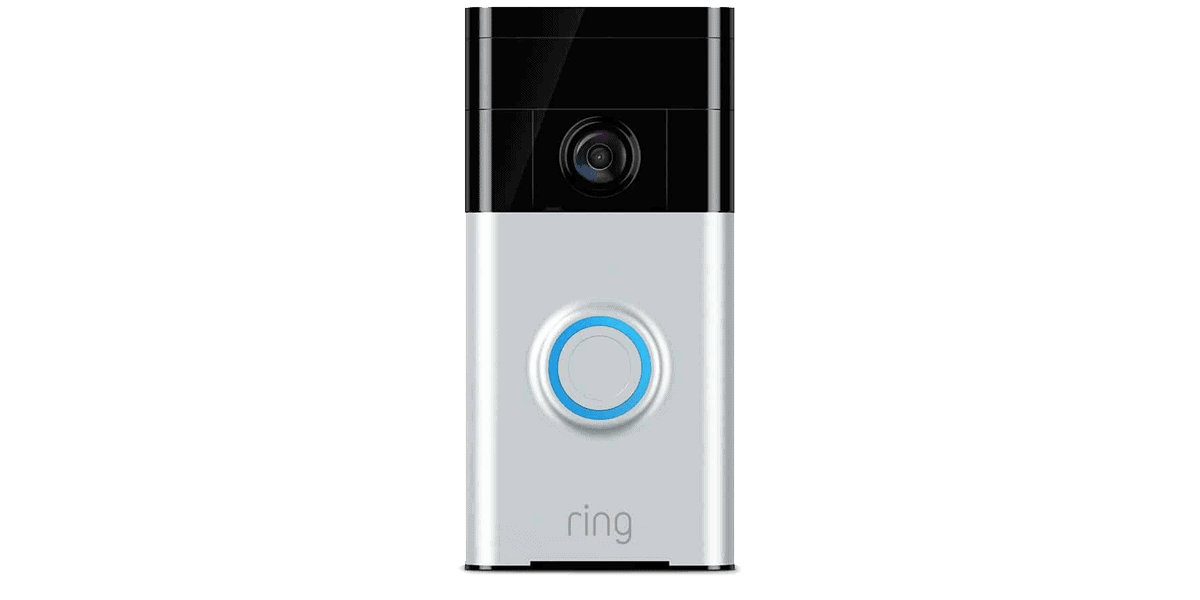
Ring doorbell cameras may need additional settings in order to get them functioning the way you want. To tweak their settings, press the name of your doorbell camera in the Alexa app or on the Echo Show touch screen.
Press the gear icon in the top right of the Alexa app. In the Settings area, you’ll see an example of how to ask Alexa for access to the camera (e.g. “Alexa, show me the front door.”). Beneath that, you’ll see the Announcements section.
These are the options we want to tweak.
“Motion Announcements” alert you whenever motion is detected by your doorbell camera. I keep this toggled off for my doorbell because it faces a busy sidewalk and would constantly trigger notifications. However, if your entrance is more private, this feature can be incredibly useful for security monitoring.
The next toggle, “Doorbell Press Announcements,” alerts you anytime someone presses your doorbell. This is what I recommend you have toggled on.
With this option enabled, whenever someone rings your doorbell, Echo Show will automatically display a live feed of your doorbell camera and alert you with whatever sound you’ve selected for your doorbell.
When the live feed appears, you’ll notice interactive buttons on the Echo Show screen. The microphone toggle lets you instantly communicate with visitors. You can also use voice commands like “Alexa, talk to the front door” to activate two-way audio without touching the screen.
FYI: You can customize your doorbell chime through the Alexa app. Options range from classic doorbell sounds to seasonal melodies. Amazon typically adds new holiday-themed chimes around October for Halloween and November for the winter holidays. The default chime works perfectly fine, so don’t feel pressured to change it.
For Any Other Ring Cameras
You won’t see the “Doorbell Press Announcements” in the setup options for other Ring cameras, so you’ll probably want to toggle the “Motion Announcements” on.
If someone walks near your Ring security camera, Alexa will say something like, “Motion detected at your spotlight cam,” and automatically connect to the live view.
If you’re getting too many motion alerts or want to conserve battery life on wireless Ring cameras, consider scheduling when these announcements are active. You can set them to only alert during nighttime hours or when you’re away from home. Battery-powered Ring cameras typically last six to 12 months per charge, depending on activity levels. Effectively managing alerts can bring you closer to 12 months.
Step 4: Alexa, Show Me the Money
The coolest part of having a voice-activated device such as an Echo Show is that you can ask Alexa to do most of this process itself. You’ll still need to authorize the account linking through either the Ring or Alexa app.
Give these voice commands a try:
- “Alexa, install and enable the Ring Alexa skill.”
- “Alexa, discover my devices.”
- “Alexa, show my [Ring Device Name].”
- “Alexa, talk to the front door.”
- “Alexa, hang up.”
Beyond basic monitoring, the Ring-Alexa integration opens up powerful automation possibilities. You can check on package deliveries without leaving your desk, screen visitors before answering the door, or use your Echo Show as a baby monitor with an indoor Ring camera.
You could even group your Ring doorbell camera with a lamp plugged into a smart power strip near your front door, and then set up an Alexa routine so the lamp turns on anytime someone triggers your doorbell camera at night.
This creates an effective security deterrent. Studies consistently suggest that well-lit homes are less likely to be targeted by a burglar.1
>> Read More: Can Smart Lights Really Deter Burglars?
There can be privacy considerations with voice-activated technology in your home. However, Amazon actively protects all recordings with strong encryption. On top of that, I recently discovered some questionable items in my Amazon cart after a friend’s toddler had a conversation with Alexa during a dinner party.
Be sure voice purchasing is off on your voice-activated devices, especially if you have kids (or friends who act like them).
The Power of Ring
Ring continues to lead the video doorbell market, making it one of the most popular choices among homeowners.2 Plus, it’s more than just popular. We consistently rate it as one of the top options in our list of the best video doorbells.
Whether you’re a tech enthusiast or a smart-home-security connoisseur, connecting your Ring camera and Echo Show can provide a hands-free way to stay alert and communicate with guests and uninvited visitors.
It’s also an improvement in user experience and accessibility, because you don’t have to have your phone on hand to check alerts — and if you’re anything like me, any excuse to use your phone less is probably welcome.
Overall, you just can’t beat the convenience. The next time I throw a party, I won’t have to stop what I’m doing to greet guests at the door. I can keep doing those last-minute party tasks and tell people to come in and find me in the kitchen, because that’s where my kind of party starts.